Support for Tables in Checklists
17 February 2025
1 min read

Johnny Vik
The checklist functionality in Omega 365 has been enhanced with dynamic checklist tables, bringing a more structured and flexible approach to checklist management. This feature aligns with the existing checklist support in R4, allowing users to create and configure checklist tables directly within the system.
With checklist tables, users can:
- Create structured tables inside checklists
- Add new fields and rows dynamically
- Configure field types, text, placement, and style settings
- Attach checklist tables to checklists, ensuring consistency in checklist usage
This improvement streamlines workflows by making checklists more adaptable and customizable for different use cases.
How to Use Checklist Tables
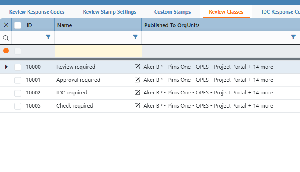
- Access the checklist tables list
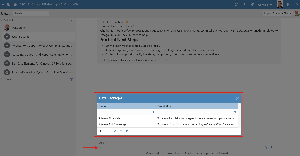
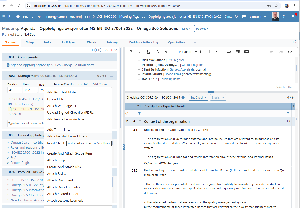
- Configure checklist tables using the visual editor
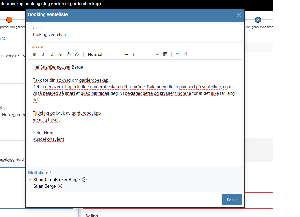
- Attach checklist tables to checklists to have them appear in new checklists automatically.
This feature ensures greater flexibility and control over checklist structures, making it easier to adapt to specific project or process needs.
.png?scale=thumbnail)
.png?scale=thumbnail)
.jpg?scale=thumbnail)